
Images come out blurry. (Camera shake)
Checking if the Camera Shake Warning is Displayed, Setting the ISO Speed (High ISO Auto)
If your images come out blurry, check for the [Camera Shake Warning] when shooting. The [Camera Shake Warning] is displayed when the camera determines from the surrounding conditions that camera shake may occur.
|
Note:
|
||
|
|
-
|
To select the items displayed on the camera's LCD monitor,
 press the buttons shown in below (right, left, up, and down).
To specify the selected items, press  the <FUNC.SET> buttons.
 |
|
|
|
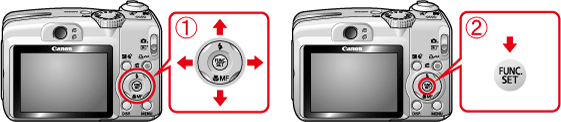
|
|
|
-
|
Screens or menu listings may differ depending on the camera model being used.
|
If the [Camera Shake Warning] (
 ) is displayed, set [ISO Speed] to [High ISO Auto] (
 ).
).
) is displayed, set [ISO Speed] to [High ISO Auto] (
).
1. Check for icons displayed on the LCD monitor when pressing the shutter button halfway. The [Camera Shake Warning] () icon is displayed on the bottom-left corner of the screen.
) icon is displayed on the bottom-left corner of the screen.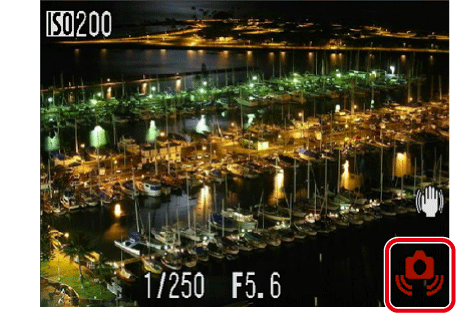
When [Camera Shake Warning] () is displayed, the followings techniques are effective for preventing camera shake.
) is displayed, the followings techniques are effective for preventing camera shake.- Set [ISO Speed] to a higher value.
- Stabilize the camera by using a tripod or something similar.
- Stabilize the camera by using a tripod or something similar.
Because you might not always be carrying a tripod with you, this section explains how to set the [ISO Speed] to a higher value. If you increase the [ISO Speed], the shutter speed becomes faster and reduces the effect of camera shake or subject blurriness.
2. When the [Camera Shake Warning] ( ) icon appears, increase the [ISO Speed] setting. Set the <Mode Dial> to <AUTO> (
 ), or <Program> (
 ) .
) .
) icon appears, increase the [ISO Speed] setting. Set the <Mode Dial> to <AUTO> (), or <Program> () .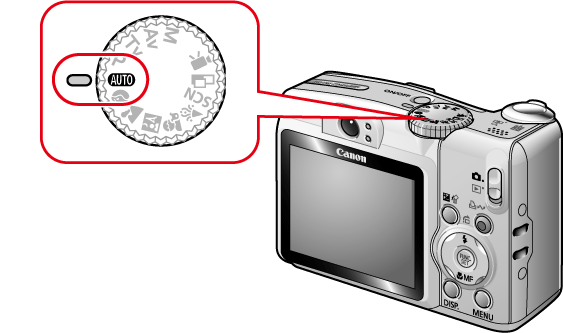
3. Press the <FUNC.SET> ( ) button.
) button.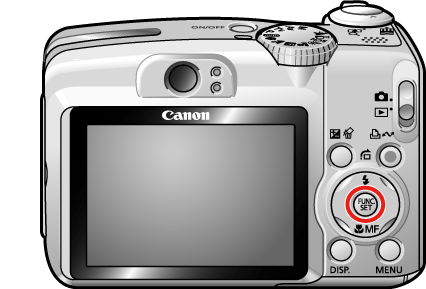
4. A screen like the one shown below will appear on the monitor.
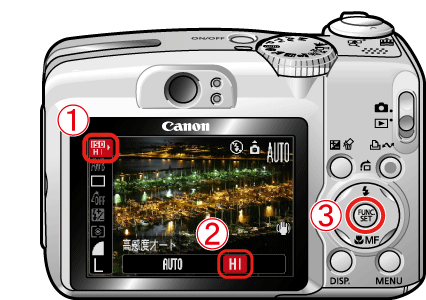 Set the [ISO Speed]. Select [High ISO Auto] (
 )* here.
 Press the <FUNC.SET> () button.
*When you select [Auto] (
 ) or [High ISO Auto] (), , optimal sensitivity is set according to the light level when shooting. Since the ISO speed setting will automatically be increased in dark places, the camera will select a faster shutter speed and reduce the chance of camera shake. Selecting [High ISO Auto] () sets the sensitivity to a higher value than the [Auto] () settings. This makes the shutter speed faster, reducing camera shake or blurry subjects compared with the [Auto] () setting.
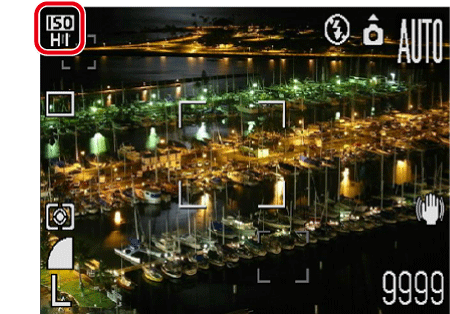
5. If the icon below appears, the setting is complete.
|
- |
If the [Camera Shake Warning] icon (
) appears even if [ISO Speed] is set to [High ISO Auto] (), use a tripod or something similar to stabilize the camera. If you stabilize the camera, it is not necessary to adjust [ISO Speed] to prevent camera shake. |
|
- |
Setting [ISO Speed] to [High ISO Auto] (
) may increase image noise when compared with [Auto] ( ). ). |
This completes the [ISO Speed] (High ISO Auto) setting.