
Setting the Date and Time
Solution
This section describes how to make the date and time settings on the camera.
IMPORTANT
- The position and shape of the operation buttons, screens displayed, and setting items may differ according to the model you use.
- The date and time settings are recorded on images captured with the camera.
When you turn on the camera for the first time after purchase, the [Date/time] settings screen appears.
1. Press the <Power> button on the camera.
2. The following screen appears.
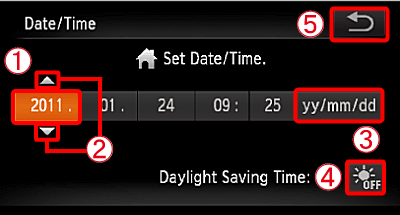
 Touch the item you want to set, and then
  touch, (
 or
or  ) to set a value.
 Change the year, month, and date.
 Set the daylight saving time (one hour is added to the current time).
After the settings are completed,  touch
touch  .
.
touch .1. Press the <Power> button on the camera.
2. The following screen appears.
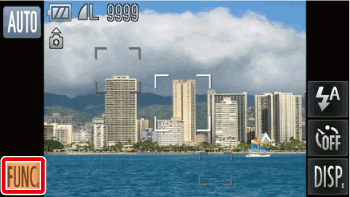
Touch [FUNC.] ( ).
).
).3. The following screen appears.
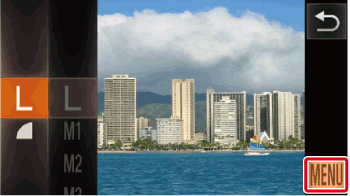
Touch [MENU] ( ).
).
).4. The following screen appears.
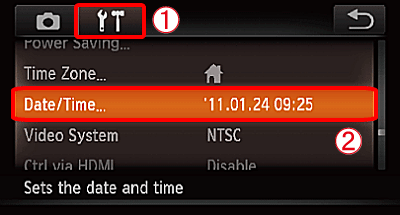
 Touch the [Set up] (
 ) tab.
 Drag the screen up or down to select [Date/Time].
Touch [Date/Time].
5. The following screen appears.
Touch the item you want to set, and then touch ( or ) to set a value. Change the year, month, and date.Set the daylight saving time (one hour is added to the current time).After the settings are completed, touch .
touch .NOTE
- If you have not set the date and time, the [Date/Time] screen will appear each time you turn on the camera.
- The camera has a built-in date/time battery (backup battery) that allows the date / time settings to be retained for about three weeks after the battery pack has been removed.
- By inserting a charged battery or connecting an AC adapter kit (sold separately) the date/time battery can be charged in about 4 hours even if the camera is not turned on.