
Editing the Movies with the Camera (EOS REBEL T4i/EOS 650D) (Editing the First and Last Scenes of a Movie)
Solution
With your camera, you can edit out the first and last scenes of a movie in 1-sec. increments. You can select [Overwrite] to save and overwrite the original movie, or [New file] to save the movie as a new movie. This operation is carried on the movie playback screen.
1. Set the power switch to <ON>.
2. Press the <  > to display the image.
> to display the image.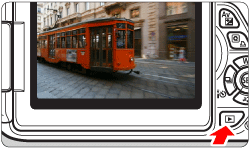
3. Press the <Cross Keys> to select the image.
- During the single-image display, the [
 ] icon displayed on the upper left indicates that it is a movie.
 - During the index display, the perforation on the left edge of the image indicates that it is a movie. Movies cannot be played on the index display, so press the <SET> button to switch to the single-image display.
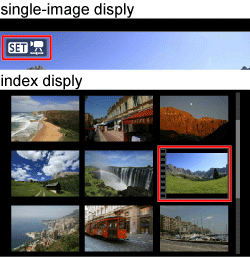
4. On the single-image display, press the <SET> button.
The movie playback panel will appear on the bottom.
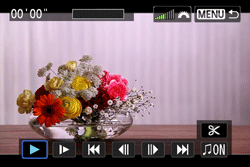
5. Press the <Cross Keys> to select [  ], then press the <SET> button.
], then press the <SET> button.The editing screen will be displayed.
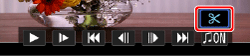
6. Specify the parts to be edited out.
6-1. Press the <Cross Keys> to select either [  ] (Cut beginning) or [
  ] (Cut end), then press the <SET> button.
] (Cut beginning) or [ ] (Cut end), then press the <SET> button.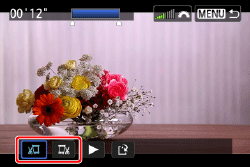
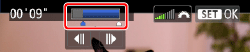
6-2. Press the <Cross Keys> to see the previous or next frames. Holding it down will fast forward the frames.
- After deciding which part to edit out, press the <SET> button.
- The portion highlighted in blue on the top of the screen is what will remain.
- Since the editing is done in 1-sec. increments (position indicated by [
 ]), the exact position where the movie is edited may differ slightly from the position you specified.
7. Check the editing.
- Press the <Cross Keys> to select [
 ], and then press the <SET> button to playback the portion highlighted in blue.
 - To change the editing, go back to step 6.
- To cancel the editing, press the <MENU> button, select [OK] on the confirmation screen, then press <SET>.
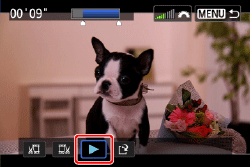
8. Press the <Cross Keys> to select [  ], then press the <SET> button to save the movie. The save screen will appear.
], then press the <SET> button to save the movie. The save screen will appear.
- To save it as a new movie, select [New file]. To save it and overwrite
the original movie file, select [Overwrite]. Then press <SET>.
- On the confirmation screen, select [OK] , then press <SET> to save the edited movie and return to the movie playback screen.
NOTE
- If the card does not have enough free space, [New file] will not be available.
- When the battery level is low, editing the movie is not possible. Use a fully-charged battery.