

Erasing images (PowerShot SX700 HS / SX280 HS)
Solution
This section explains how to erase images.
IMPORTANT
- Be careful when erasing images, because they cannot be recovered. However, protected images cannot be erased.
- The position and shape of the operation buttons, screens displayed, and setting items may differ according to the model you use.
You can erase unwanted images individually.
1. Press the <Playback> ( ) button to turn on the camera.
) button to turn on the camera.2. Press the < ><
>< > buttons or turn the <Control dial> to choose the image you want to erase.
><> buttons or turn the <Control dial> to choose the image you want to erase. 
3. Press the <Single image erase> ( ) button.
) button.
4. The following screen appears.
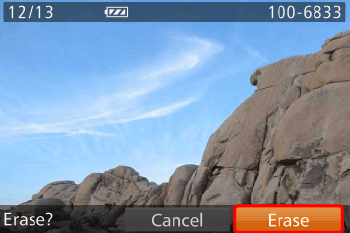
Press <> to choose [Erase], and then press the <FUNC./SET> ( ) button to erase the image.
> to choose [Erase], and then press the <FUNC./SET> () button to erase the image.You can erase images that are in a specified range.
1. Press the <Playback> () button to turn on the camera.
) button to turn on the camera.2. Press the < > button.
> button.3. The following screen appears.
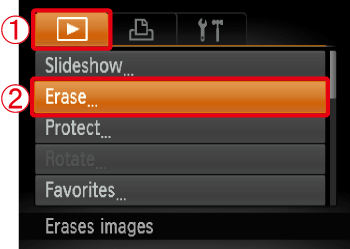
 Press the <><> buttons to choose the <Playback> (
 ) tab.
 Press the <
 ><
>< > buttons or turn the <Control dial> to choose [Erase], and then press the <FUNC./SET> () button.
4. The following screen appears.
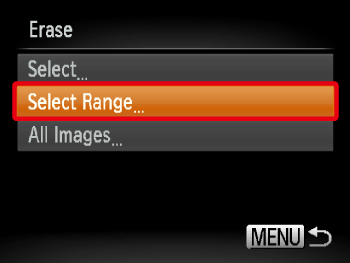
Press the <><> buttons or turn the <Control dial> to choose [Select Range], and then press the <FUNC./SET> () button.
><> buttons or turn the <Control dial> to choose [Select Range], and then press the <FUNC./SET> () button.REFERENCE
- You can select [Select] to individually specify the images that you want to erase.
- You can select [All Images] to erase all images at once.
5. The following screen appears.
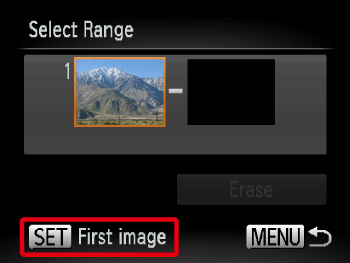
Check whether the [First Image] is selected, and then press the <FUNC./SET> () button.
) button.6. The following screen appears
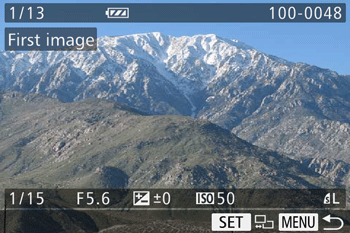
Press the <><> buttons or turn the <Control dial> to choose the [First Image] in the series of images that you want to erase, and then press the <FUNC./SET> () button.
><> buttons or turn the <Control dial> to choose the [First Image] in the series of images that you want to erase, and then press the <FUNC./SET> () button.7. The following screen appears.
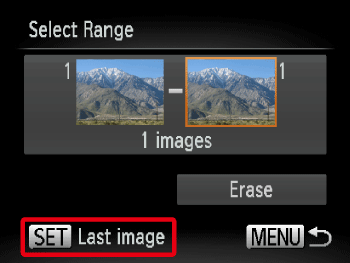
Press the <><> buttons to select the [Last image], and then press the <FUNC./SET> () button.
><> buttons to select the [Last image], and then press the <FUNC./SET> () button.8. The following screen appears.
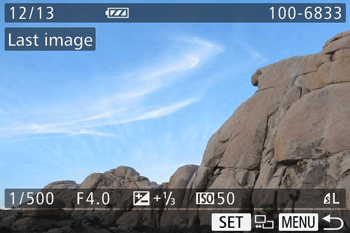
Press the <><> buttons or turn the <Control dial> to choose the last image you want to erase, and then press the <FUNC./SET> () button.
><> buttons or turn the <Control dial> to choose the last image you want to erase, and then press the <FUNC./SET> () button.9. The following screen appears
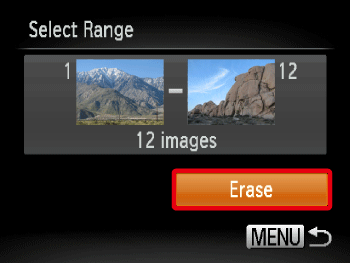
Press the <><> buttons to choose [Erase], and then press the <FUNC./SET> () button to erase the images.
><> buttons to choose [Erase], and then press the <FUNC./SET> () button to erase the images.