
Changing the orientation of movies and images (Mirror Image / Detect Orientation) (VIXIA mini / LEGRIA mini)
Solution
Using mirror image recording, the camcorder will record the image reversing left and right.

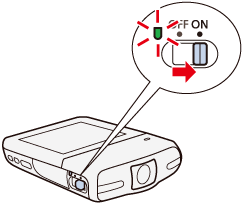
1. Set the power switch to ON to turn on the camcorder.
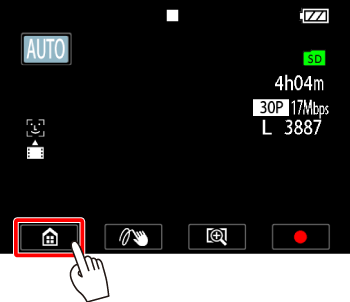
2. Touch [  ].
].
].
3.  Drag your finger left/right to bring the [
  Flip/Rotate Image] menu into the center, then
  touch the icon to open it.
Drag your finger left/right to bring the [ Flip/Rotate Image] menu into the center, then touch the icon to open it.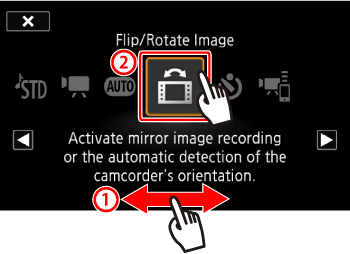
4. Touch [  Mirror Image], and then touch [On].
Touch [ Mirror Image], and then touch [On].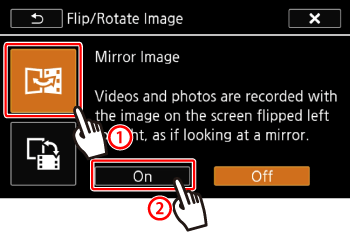
5. Touch [  ].
].
].6. When [Mirror Image] set to [On], the [ ] icon will appear on the screen.
] icon will appear on the screen.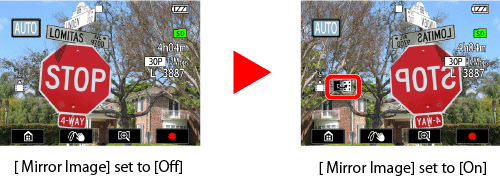
7. The camcorder will record the image reversing left and right.
NOTE
- In step 4, select [Off] instead to turn off the function.
- Turing the camcorder’s power off will not cancel [Mirror Image] recording. Make sure to set [Mirror Image] to [Off] before resuming normal recording.
REFERENCE
The [Mirror Image] setting status is displayed on the screen. If [Mirror Image] set to [On], the [ ] icon will be visible.
] icon will be visible.When orientation detection is turned on, the camcorder will detect if it is turned sideways or upside-down while recording so the image can be corrected during playback.
1. Touch [ ].
].2. Drag your finger left/right to bring the [ Flip/Rotate Image] menu into the center, then touch the icon to open it.
Drag your finger left/right to bring the [ Flip/Rotate Image] menu into the center, then touch the icon to open it.3. Touch [  Detect Orientation], and then touch [On].
Touch [ Detect Orientation], and then touch [On].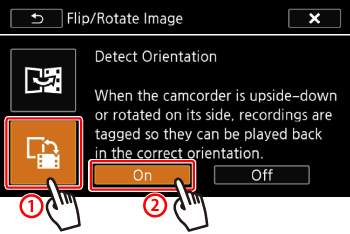
5. Touch [ ].
].Examples of image rotation when [Detect Orientation] is set to [On]
| Recording | Playback | ||
|---|---|---|---|
| Camcorder’s orientation*1 | Onscreen icon | Movies*2 | Photos |
 |  |  |  |
 | | | |
 |  |  *2 *2 |  |
 |  |  *2 *2 | |
*2 Even when orientation detection is turned on, movies recorded with the camcorder turned sideways cannot be played back in vertical orientation using the camcorder.
REFERENCE
To display photos in the correct orientation, orientation detection should be turned on while recording and [Other settings] > [Movie Playback] / [Photo Playback] > [Auto Rotate] should be set to [On] during playback.
You can reverse left and right in normally recorded images during playback using the Mirror Image function.
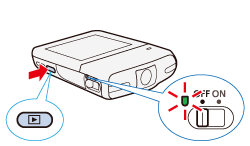
1. Press the camcorder’s <Playback> button to set it to <Playback> mode.
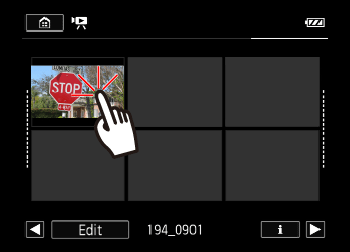
2. Touch the desired scene to play it back.
Touch the screen to display the playback controls, and then touch [  ] to pause playback.
] to pause playback.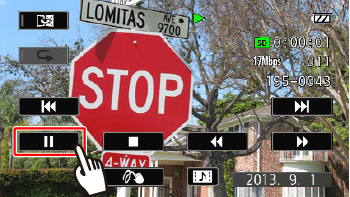
4. Touch [ ].
].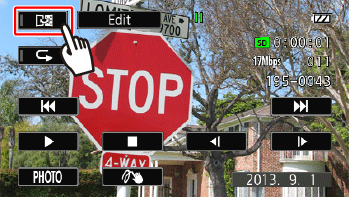
5. Touch [  ] to playback the image with right and left reversed.
] to playback the image with right and left reversed.
REFERENCE
- To cancel Mirror Image playback, touch [ ] again, or end playback by touching [
 ].
]. - The [Mirror Image] setting status can be displayed by touching the screen during playback. When the [Mirror Image] setting is [ON], an orange indicator will visible on the [ ] icon
[  ] (Mirror Image Playback is set to [ON])
] (Mirror Image Playback is set to [ON])[  ] (Mirror Image Playback is set to [Off])
] (Mirror Image Playback is set to [Off])