
How to import images to Digital Photo Professional Express (Wi-Fi Connection) (EOS M6 Mark II)
Solution
When the camera and iPad are connected via Wi-Fi, the images on the camera can be imported to the iPad and displayed in Photo Professional Express. The two ways to import images are as follows.
- Use Digital Photo Professional Express to import JPEG images/RAW (CR3) images
- Use Camera Connect to import JPEG images/RAW (CR3) images
IMPORTANT
- It is recommended to save the images imported to Digital Photo Professional Express to a memory card or another location other than the iPad, should there be a need to use the images outside of Digital Photo Professional Express.
- Before connecting the camera, you must install the free Camera Connect app to the iPad, which can be downloaded from the App Store.
- Use Camera Connect version 2.5.10 or over.
- See "Related Information" for details on what iPad can be connected to the camera via Wi-Fi.
- Interface or functions of Digital Photo Professional Express or Camera Connect are subject to change, for application improvements or update. In such a case, features may differ from sample screens or operation instructions in this explanation.
NOTE
- Procedures starting with an
 illustration, are steps for the iPad. procedures starting with a
  illustration, are steps for the camera.
 - Keep your fingers or other objects off the Wi-Fi antenna area. Covering this may decrease the speed of your image transfers.
- Depending on the condition of the network you are using, it may take a longer time to transfer images.
- A memory card must be in the camera for the connection.
1. Install Camera Connect. 2. Open [ Settings ] on iPad, make sure the [ Airplane Mode ] is [ OFF ]. 3. Turn the camera on.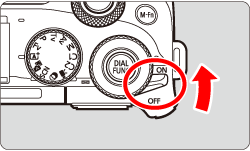 4. Press the <
  > button.
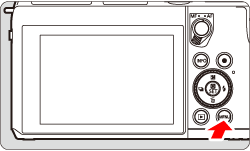 5. Press the <
  > button to choose the [
  ] tab.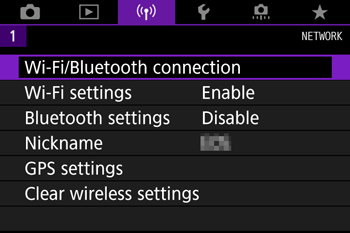
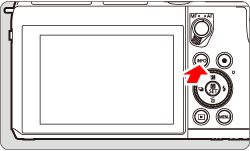 6. Turn the <
  > dial to choose [ Wi-Fi/Bluetooth connection ], press <
  >.
>.
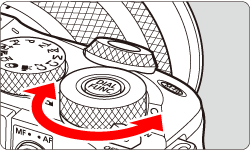
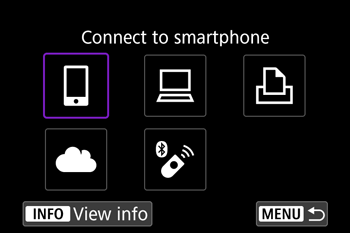
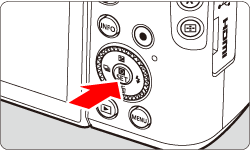 7. Turn the < > dial to choose [ Connect to smartphone ], press < >.
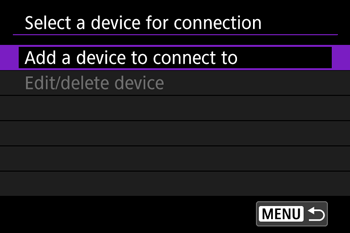
 8. Turn the < > dial to choose [ Add a device to connect to ], press < >.
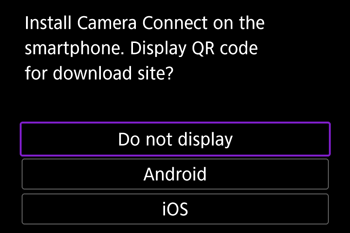
 9. Turn the < > dial to choose [ Do not display ], press < >.
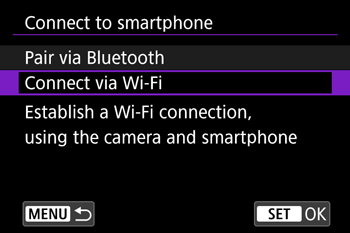
 10. Turn the < > dial to choose [ Connect via Wi-Fi ], press < >.
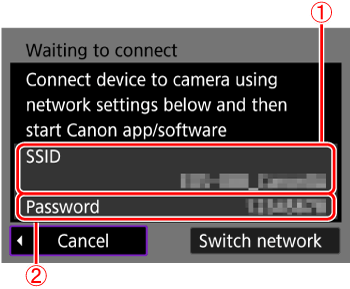
 11. The SSID (
  ) and password (
  ) will be displayed on the screen.
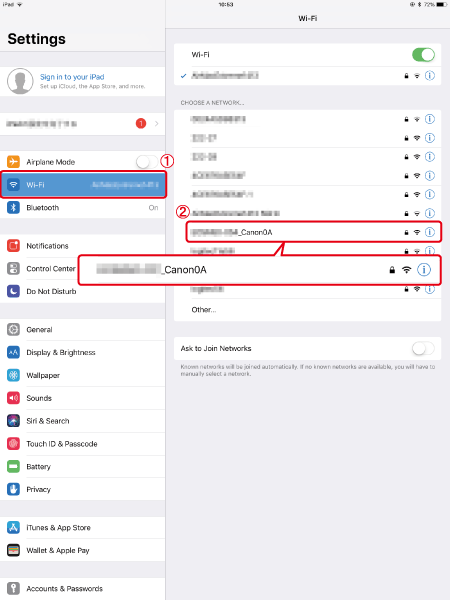
 12. Open [ Settings ] on the iPad, select [ Wi-Fi ] (
  ) to confirm the SSID (
  ) is the same as the one displayed on the camera screen, and tap to select.
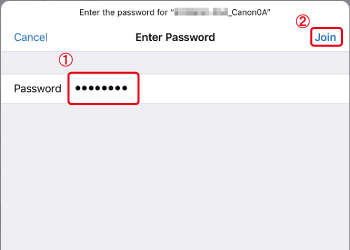
 13. Input the same Password as displayed on the camera ( ) and tap [ Join ] ( ).
 14. Open Digital Photo Professional Express. 15. Tap [Import from Canon Camera Connect (RAW/JPEG)] from [
  ] on the upper left hand.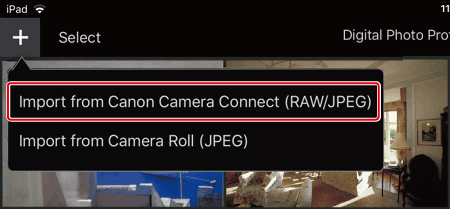
NOTE
If Camera Connect is not installed, the App Store page will be displayed. In order to connect the camera to the iPad using Wi-Fi, the connection must be made through Camera Connect. Please install Camera Connect first.
16. Tap [ OK ].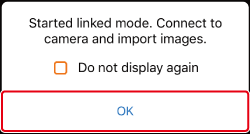 17. Tap [ EOS M6 Mark II ].
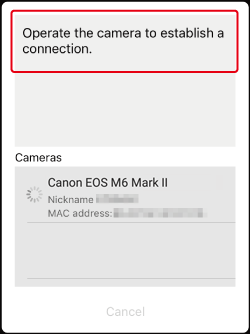
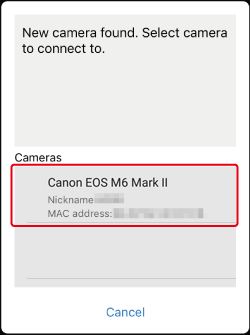 18. Confirm that [ Operate the camera to establish a connection ] is displayed.
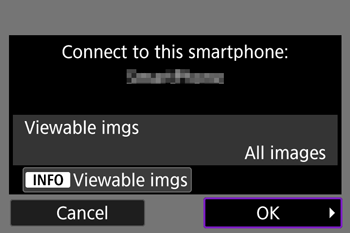
 19. Choose [ OK ] and press < >.
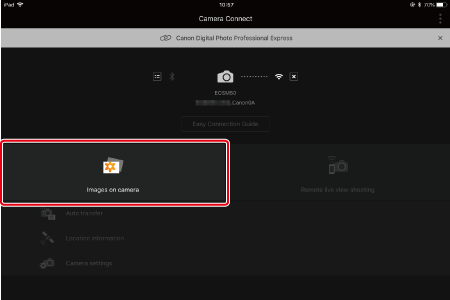
 20. [ Wi-Fi on ] will be displayed on the camera screen. 21. Tap [ Images on camera ].
 22. Tap [ Select ].
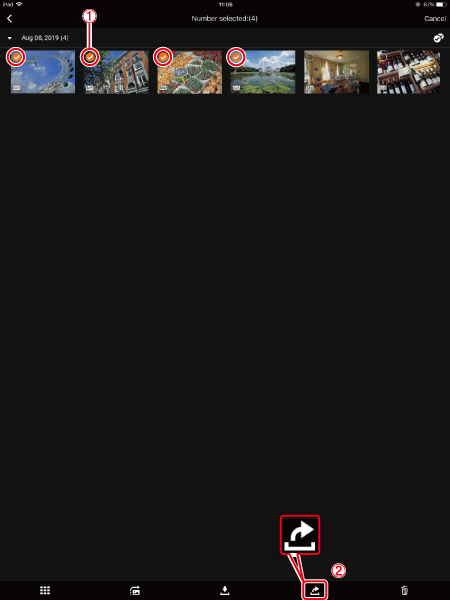
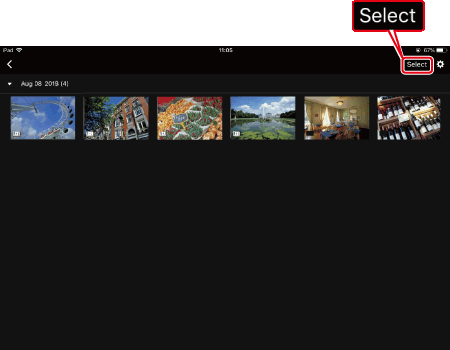 23. Tap on the imported images to select images.
 - Selected images will have a
 displayed ().
 - Tap on [
 ] to select all.
 - After selecting, tap on
 ().
().
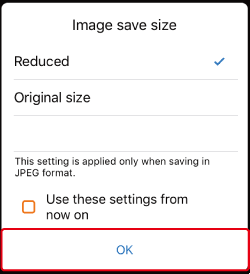
 24. Select image size, and tap [ OK ].
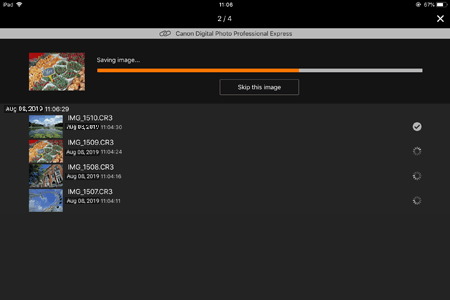
 25. The selected images will be imported into Digital Photo Professional Express.
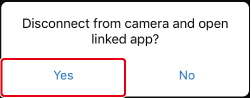
 26. Once the images have been imported, tap [ Open linked app ].
 27. Tap [ Yes ].
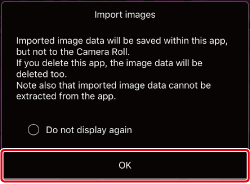
 28. Digital Photo Professional Express will open, tap [ OK ].
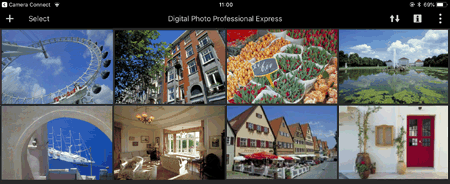
 29. The imported images will be displayed in the thumbnails screen in Digital Photo Professional Express.
 1. Install Camera Connect. 2. Open [ Settings ] on iPad, make sure the [ Airplane Mode ] is [ OFF ]. 3. Turn the camera on. 4. Press the < > button. 5. Press the < > button to choose the [ ] tab.
6. Turn the < > dial to choose [ Wi-Fi/Bluetooth connection ], press < >.
7. Turn the < > dial to choose [ Connect to smartphone ], press < >. 8. Turn the < > dial to choose [ Add a device to connect to ], press < >. 9. Turn the < > dial to choose [ Do not display ], press < >. 10. Turn the < > dial to choose [ Connect via Wi-Fi ], press < >. 11. The SSID ( ) and password ( ) will be displayed on the screen. 12. Open [ Settings ] on the iPad, select [ Wi-Fi ] ( ) to confirm the SSID ( ) is the same as the one displayed on the camera screen, and tap to select. 13. Input the same Password as displayed on the camera ( ) and tap [ Join ] ( ). 14. Go to home screen, and open Camera Connect.
1. Install Camera Connect. 2. Open [ Settings ] on iPad, make sure the [ Airplane Mode ] is [ OFF ]. 3. Turn the camera on. 4. Press the < > button. 5. Press the < > button to choose the [ ] tab.
6. Turn the < > dial to choose [ Wi-Fi/Bluetooth connection ], press < >.
7. Turn the < > dial to choose [ Connect to smartphone ], press < >. 8. Turn the < > dial to choose [ Add a device to connect to ], press < >. 9. Turn the < > dial to choose [ Do not display ], press < >. 10. Turn the < > dial to choose [ Connect via Wi-Fi ], press < >. 11. The SSID ( ) and password ( ) will be displayed on the screen. 12. Open [ Settings ] on the iPad, select [ Wi-Fi ] ( ) to confirm the SSID ( ) is the same as the one displayed on the camera screen, and tap to select. 13. Input the same Password as displayed on the camera ( ) and tap [ Join ] ( ). 14. Go to home screen, and open Camera Connect.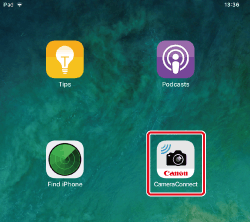 15. Tap [ EOS M6 Mark II ]. 16. Confirm that [ Operate the camera to establish a connection ] is displayed. 17. Turn the < > dial to choose [ OK ], press < >. 18. [ Wi-Fi on ] will be displayed on the camera screen. 19. Tap [ Images on camera ] .
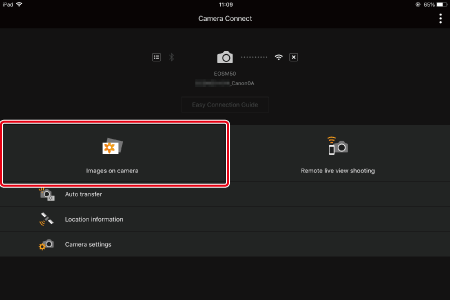 20. Tap [ Select ]. 21. Tap on the imported images to select images.
 - Selected images will have a displayed ().
- Tap on [ ] to select all.
- After selecting, tap ().
22. Tap [Digital Photo Professional Express], to choose and tap [ Select ].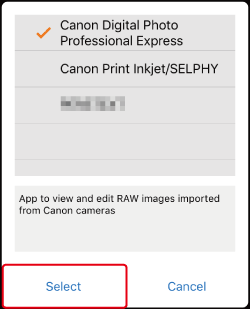 23. Select image size, and tap [ OK ]. 24. The selected images will be imported into Digital Photo Professional Express. 25. Once the images have been imported, tap [ Open linked app ]. 26. Tap [ Yes ]. 27. Digital Photo Professional Express will open, tap [ OK ]. 28. The imported images will be displayed in the thumbnails screen in Digital Photo Professional Express.
Use the on-screen keyboard to enter information. Note that the length and type of information you can enter varies depending on the function you are using.
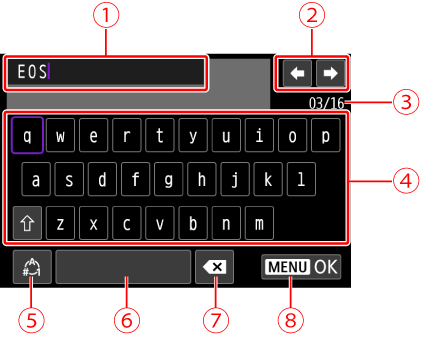
| Input area, for entering text |
| Cursor keys, for moving in the input area |
 | Current no. of characters/no. available |
 | Keyboard |
 | Switch input modes |
 | Space |
 | Delete a character in the input area |
 | Finish the text entry |