
Cannot Send a Fax (MF4890dw/MF4870dn/MF4750 Only)
สารละลาย
Wait a few moments until the machine starts and warms up.
- Make sure that the telephone cable is properly connected. Check if that the cables for the telephone line port and external device port on the back of the machine are not connected inversely.
- Make sure that the line type (dial or push) specified in the menu corresponds to the type of line connected to the machine.
- Make sure that the telephone line is not receiving interference from nearby devices such as a microwave oven. This may affect the status of the telephone line.
Press [  ] (FAX) to switch to the Fax mode.
] (FAX) to switch to the Fax mode.Properly load the document.
Check that the Address Book settings are registered correctly.
Check that you have the correct number.
Press [  ] (Energy Saver) on the operation panel to exit the Sleep mode.
] (Energy Saver) on the operation panel to exit the Sleep mode.Ask the recipient to ensure that paper is loaded in the machine.
Wait until the transmission is completed.
- Check the display for an error message.
- Print the Communication Management Report to check for errors.
Make sure there is a dial tone when you press [  ] (Hook) or when you lift the handset of any external telephone connected to the machine. If there is no dial tone, contact your local telephone company.
] (Hook) or when you lift the handset of any external telephone connected to the machine. If there is no dial tone, contact your local telephone company.Make sure the recipient's machine is compatible with your machine.
The fax number you dialed is busy. Try sending the document later.
Ask the recipient to check the machine. For an overseas call, add pauses to the registered number.
The external phone or the optional handset is busy. Please wait until the external phone is not busy.
Unplug the machine and let it cool for about 5 minutes. Then plug in the machine and try sending again.
When making an overseas call, you may need to add a pause to the fax number.
Since signals are transmitted over long distances across a complicated channel, your call may not be connected without adding a pause after the country code or in front of the fax number. By adding a pause, enough time elapses before the machine starts dialing the number again.
2. Press [ ] (FAX).
] (FAX).3. Specify the scanning settings as needed.
4. Enter the international access code using the numeric keys.
For details about on international access codes, contact your telephone company.
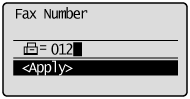
5. Press [ ] (Redial/Pause) to enter a pause as needed.
] (Redial/Pause) to enter a pause as needed.- The letter <p> is displayed to indicate that a pause is added.
- The default pause length is two seconds*. To change the pause time, see the "e-Manual" (HTML manual) in the CD-ROM supplied with the machine.
- To add consecutive pauses, press [ ] (Redial/Pause) again.
* The default pause length varies depending on the country where you are using the machine.
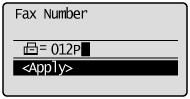
6. Enter the country code, the area code, and the fax/telephone number using the numeric keys.
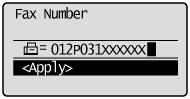
7. Press [ ] (Redial/Pause) to add a pause to the end of the fax/telephone number as needed, and then press [OK].
] (Redial/Pause) to add a pause to the end of the fax/telephone number as needed, and then press [OK].- The letter <P> is displayed at the end of the fax number.
- A pause added to the end of the number is set to 10 seconds.
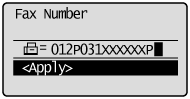
8. Press [  ] (Start).
] (Start).The send start speed is specified 33600 bps in the default setting, however you may not be able to send a fax depending on the status of the recipient fax machine or the line.
Select a slower send speed using following procedure, and then send a fax.
1. Press [  ] (Menu).
] (Menu).2. Press [  ] or [
  ] to highlight <System Settings>, and then press [OK].
] or [ ] to highlight <System Settings>, and then press [OK].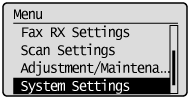
 If a System Manager PIN is specified
Use the numeric keys to enter the System Manager PIN, and then press [OK].
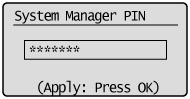
3. Press [ ] or [ ] to highlight <Communication Management Settings>, and then press [OK].
] or [ ] to highlight <Communication Management Settings>, and then press [OK].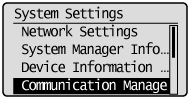
4. Press [ ] or [ ] to highlight <Fax Settings>, and then press [OK].
] or [ ] to highlight <Fax Settings>, and then press [OK].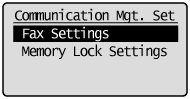
5. Press [ ] or [ ] to highlight <TX Start Speed>, and then press [OK].
] or [ ] to highlight <TX Start Speed>, and then press [OK].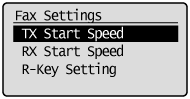
6. Press [ ] or [ ] to highlight the send start speed, and then press [OK].
] or [ ] to highlight the send start speed, and then press [OK].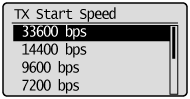
7. Press [ ] (Menu) to close the Menu screen.
] (Menu) to close the Menu screen.The procedure is complete.