
Printed Surface Is Scratched/Paper Is Smudged
ปัญหา
สาเหตุและแนวทางแก้ไข
- Check to see if the paper you are printing on is not too thick or curled. See "Compatible Media Types" to make sure that the paper you are using is suitable. If the paper is curled, see "Paper is curled." to correct paper curl.
When performing Borderless Printing, print quality may be reduced at the top and bottom edges of the paper. Make sure that the paper you are using is suitable for Borderless Printing. For details, see "Printing Area".
If you are using paper with either any of the corners or the whole printing surface curled, the paper may become dirty, not feed properly, or both. Use such paper after correcting paper curl as follows.
(1) With the printing side (A) facing up, cover the paper with a fresh sheet of plain paper to avoid staining or scratching the surface.
(2) Roll up the paper in a direction opposite to paper curl as seen below.
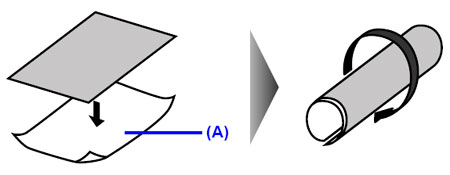
(3) Check to see that the paper curl is within approximately 0.08 to 0.2 inches / 2 to 5 mm (B) in height.
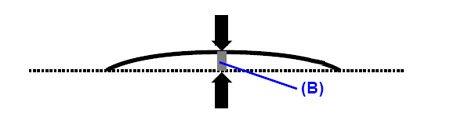
We recommend printing curl-corrected paper one sheet at a time.
NOTE
Depending on the media type, the paper may be smudged or may not be fed properly even if it is not curled. In such case, follow the procedure described above to curl the paper before printing. This may improve the print result.
Selecting the Prevent paper abrasion setting will widen the clearance between the Print Head and the loaded paper. If you notice abrasion even with the media type set correctly to match the loaded paper, set the machine to prevent paper abrasion by using the Operation Panel on the machine or the printer driver.*
* Deactivate the Prevent paper abrasion setting once printing is complete. If not, this setting remains enabled for all subsequent print jobs.
- Setting with the Operation Panel on the machine
Press the Menu button, select Maintenance/settings, Device settings, and Print settings in this order, and then set Prevent paper abrasion to ON.
- Setting with the printer driver
( Windows )
Open the printer properties dialog box, and in Custom Settings in the Maintenance sheet, select the Prevent paper abrasion check box, and then click Send.
( Macintosh )
In the Canon IJ Printer Utility, select Custom Settings in the pop-up menu, select the Prevent paper abrasion check box, and then click Send.
If you are printing beyond the recommended printing area of your printing paper, the lower edge of the paper may become stained with ink. Resize your original document in your application software. For details on recommended printing area, see "Printing Area".
Clean the Paper Feed Roller. Cleaning the Paper Feed Roller will wear the roller, so perform this procedure only when necessary.
Cleaning the Paper Feed Roller (Roller Cleaning)
Clean the paper feed roller if paper is not fed properly from the Rear Tray or Cassette. Cleaning the paper feed roller will wear the roller, so perform this only when necessary.
Performing duplex printing may leave some ink inside the machine, causing printouts to be smudged. In this case, perform Bottom Plate Cleaning to clean the inside of the machine.
For details on cleaning, see "Cleaning the Inside of the Machine (Bottom Plate Cleaning)".
In addition, as ink takes some time to dry, the roller inside the machine may be smudged.
NOTE
To prevent the inside of the machine from getting stained, set the page size correctly.
If you are printing images with high intensity, the paper may absorb too much ink and become wavy, causing paper abrasion.
- When printing from your computer
Reduce the Intensity setting in the printer driver and try printing again.
( Windows )
(1) Open the printer properties dialog box.
(2) On the Main sheet, select Manual for Color/Intensity, and then click Set.
(3) Drag the Intensity slide bar on the Color Adjustment sheet to adjust the intensity.
( Macintosh )
(1) Open the Print dialog box.
(2) Select Color Options in the pop-up menu.
(3) Drag the Intensity slide bar on the Color Adjustment sheet to adjust the intensity.
- When copying
See "Copying" and reduce the intensity setting. Then try printing again.