
Printing Photos
สารละลาย
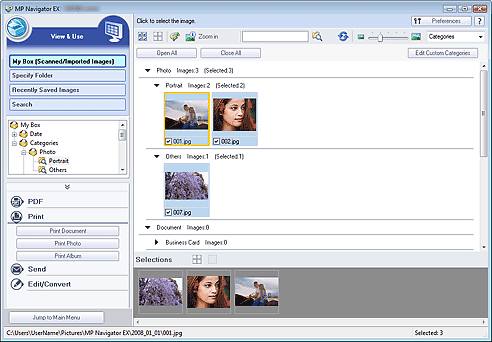
You can print photos using MP Navigator EX. After scanning documents and saving them, open the View & Use window to select how you want to print the photos.
REFERENCE
- You can also select images saved on a computer.
NOTE
- The following is explained using Windows Vista procedures.
You can use an application that accompanies your Canon inkjet printer to print scanned photos at high quality or to layout and print images.
1.Select images and click Print.
2.Click Print Photo or Print Album on the list.
An application (Canon Utilities Easy-PhotoPrint EX*) that accompanies your Canon inkjet printer starts. For details, refer to the help file of the application.
*Supported as of 2008. Application is subject to change.
REFERENCE
If Easy-PhotoPrint EX is not installed, print with MP Navigator EX.
IMPORTANT
Windows:
Canon Utilities Easy-PhotoPrint and PhotoRecord (applications that accompany Canon inkjet printers) cannot be used.
Macintosh:
Some applications that accompanies your Canon inkjet printer cannot be used.
1.Select images and click Print.
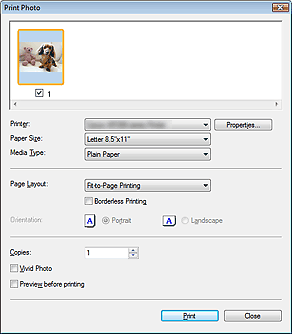
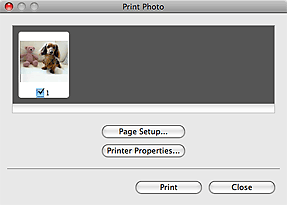
2.Click Print Photo on the list.
3.Specify print settings as required.
- Windows
In the displayed dialog box, specify paper size, print count, etc.
- Macintosh
REFERENCE
When using the printer for the first time, click Printer Properties... and specify your printer in Printer.
4.Click Print. In the displayed dialog, click Print.
Printing starts.
REFERENCE
- Windows
To cancel while printing, select the printer icon on the taskbar and click Cancel Printing.
- Macintosh
To cancel while printing, select the printer icon in the Dock and click Pause Printer.