
Deleting recorded scenes
สารละลาย
You can delete those scenes that you are not interested in keeping. Deleting scenes allows you also to free up space on the memory.
1. Press <  > to open the [Movies] or [Video Snapshot] index screen.
> to open the [Movies] or [Video Snapshot] index screen.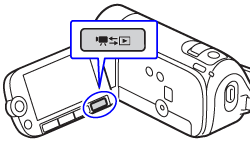
2. Select the scene you want to delete, or a scene recorded on the date you want to delete.
This step is not necessary to delete all scenes or previously selected scenes.
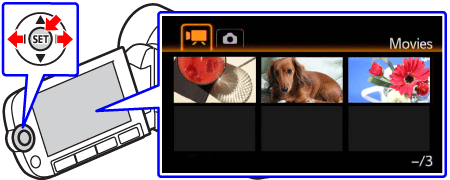
3. Delete the scenes.
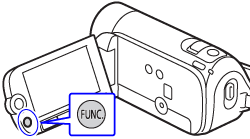
3-1. Press <FUNC.> button.
3-2. Select [  Delete ] and then press <SET> button.
Delete ] and then press <SET> button.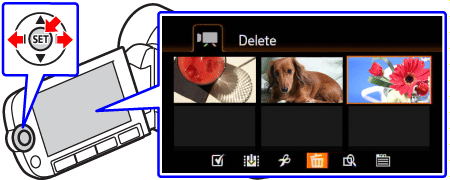
3-3. Select the desired option and then press <SET> button.
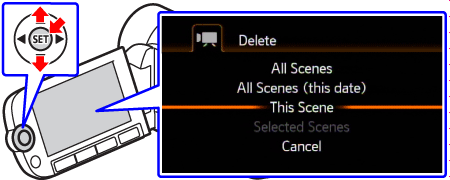
| Options | |
| [All Scenes] | Deletes all the scenes. |
| [All Scenes (this date)] | Deletes all the scenes recorded on the same day as the selected scene. |
| [This Scene] | Deletes only the scene marked with the orange selection frame. |
| [Selected Scenes] | Deletes all the scenes selected in advance (marked with a  checkmark). checkmark). |
3-4. Select [Yes] and then press <SET> button.
If you selected any option other than [This Scene], you can press <SET> to interrupt the operation while it is in progress. Some scenes will be deleted nevertheless.
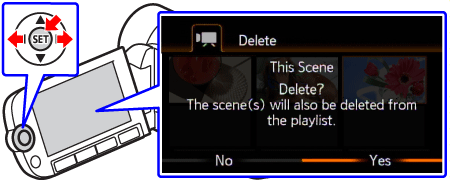
3-5. Select [OK] and then press <SET> button.
3-6. Press <  > button to close the menu.
> button to close the menu.IMPORTANT
- Be careful when deleting original recordings. Once deleted, original scenes cannot be recovered.
- Save copies of important scenes before deleting them.
- Observe the following precautions while the ACCESS indicator is on or flashing (while scenes are being deleted).
- Do not open the memory card slot cover.
- Do not disconnect the power source or turn off the camcorder.
- Do not change the camcorder’s operating mode.
NOTE
- Deleting an original scene from the [Movies] or [Video Snapshot] index screen also deletes that scene from the playlist.
- To delete all movies and make all recordable space available again you may prefer to initialize the memory.
Deleting scenes from the playlist will not affect your original recordings.
1. Press < > to open the [Movies] or [Video Snapshot] index screen.
> to open the [Movies] or [Video Snapshot] index screen.2. Press < PLAYLIST > button to open the [Playlist] or [Playlist: Video Snapshot] index screen.
3. Select the scene you want to delete.
This step is not necessary to delete all scenes.
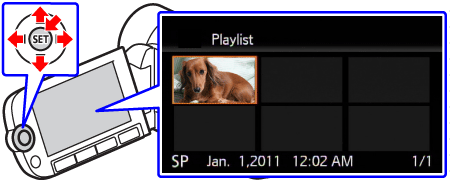
4. Delete the scene.
4-1. Press < > button.
> button.4-2. Select [ Delete ] and then press <SET> button.
Delete ] and then press <SET> button.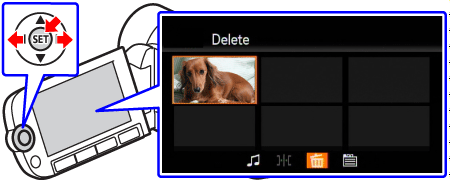
4-3. Select the desired option and then press <SET> button.
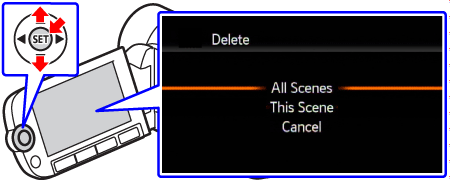
| Options | |
| [All Scenes] | Deletes all the scenes from the playlist. |
| [This Scene] | Deletes from the playlist only the scene marked with the orange selection frame. |
4-4. Select [Yes] and then press <SET> button.
If you selected [All Scenes], you can press <SET> to interrupt the operation while it is in progress. Some scenes will be deleted nevertheless.

4-5. Select [OK] and then press <SET> button.
4-6. Press < > button to close the menu.
> button to close the menu.