

Customizing the operation buttons on the EOS 7D Mark II (assigning functions other than the default functions to the buttons)
สารละลาย
You can assign often-used functions to camera buttons or dials according to your preferences.
1. Set the lens’s focus mode switch to <AF>.
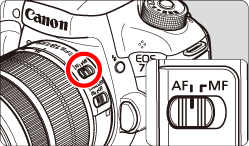
2. Set the camera's power switch to <ON>.
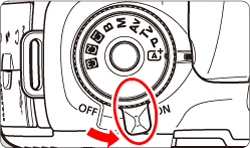
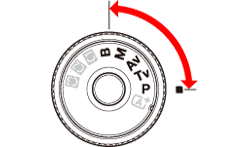
3. Set the Mode Dial to < P / Tv / Av / M / B>.
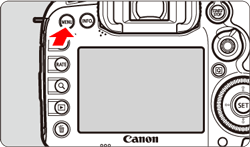
4. Press the <MENU> button to display the menu screen.
5. Press the < > button and select the [
  ] tab.
> button and select the [ ] tab.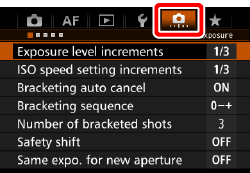
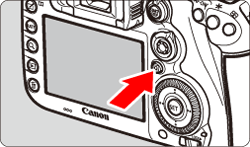
6. Turn the < > dial to select the [
  ] tab.
> dial to select the [ ] tab. 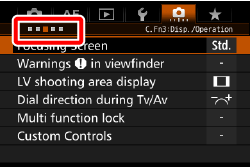
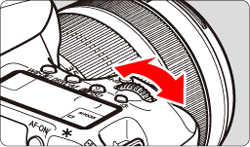
7. Turn the < > dial to select [Custom Controls], then press <
 >.
>.
> dial to select [Custom Controls], then press <>. 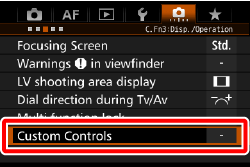
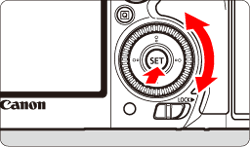
8. Turn the <> dial to select a camera button or dial, then press <>.
> dial to select a camera button or dial, then press <>. 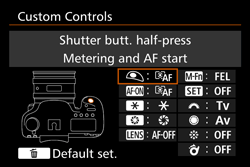
9. Turn the <> dial to select a camera function, then press <>.
> dial to select a camera function, then press <>.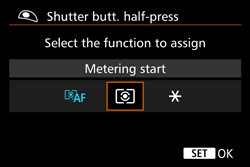
- If the [
 ] icon appears on the bottom left, you can press the <INFO.> button and set other related options.
10. Exit the setting.
● When you press <> to exit the setting, the screen in step 8 will reappear.
> to exit the setting, the screen in step 8 will reappear.● Press the <MENU> button to exit.
NOTE
With the screen in step 8 displayed, you can press the < > button to revert the Custom Control settings to their defaults. Note that the [
  : Custom Controls] settings will not be canceled even if you select [
  : Clear all Custom Func. (C.Fn)].
> button to revert the Custom Control settings to their defaults. Note that the [ : Custom Controls] settings will not be canceled even if you select [ : Clear all Custom Func. (C.Fn)].* The AF stop button ( ) is provided only on super telephoto IS lenses.
) is provided only on super telephoto IS lenses.| Function |  |  |  |  | * |  |  |  |  |  |  | ||
|---|---|---|---|---|---|---|---|---|---|---|---|---|---|
| AF |  | Metering and AF start |  | *1 | *1 | | |||||||
 | AF stop | | | | | ||||||||
 | Switch to registered AF function | *2 | *2 | ||||||||||
 | ONE SHOT <-> AI SERVO | | | | | ||||||||
 | Switch to registered AF point | *3 | *3 | ||||||||||
 | Selected AF point ↔ Center/Registered AF point | *4 | |||||||||||
 | AF point direct selection | | *5 | ||||||||||
 | Direct AF point selection: Vertical | | |||||||||||
 | Direct AF area selection | | |||||||||||
| Exposure |  | Metering start | | ||||||||||
 | AE lock | | | | | | | ||||||
| AE lock (while button pressed) | | |||||||||||
 | AE lock (hold) | | | | | | | ||||||
 | AE lock, AF stop | | | ||||||||||
 | FE lock | | | | | ||||||||
 | Set ISO speed (hold button, turn ) | | |||||||||||
 | ISO (hold down lever, turn ) | | |||||||||||
 | Set ISO speed ( during meter) | | |||||||||||
 | Exposure compensation (hold button, turn ) | | |||||||||||
 | Exposure compensation (hold down lever, turn ) | | |||||||||||
 | Shutter speed setting in M mode | | | ||||||||||
 | Aperture setting in M mode | | | ||||||||||
| Function | | | | | * | | | | | | | ||
|---|---|---|---|---|---|---|---|---|---|---|---|---|---|
| Images |  | One-touch image quality setting | *6 | *6 | |||||||||
 | One-touch image quality (hold) | *6 | *6 | ||||||||||
 | Image quality | | |||||||||||
 | Picture Style | | |||||||||||
| Operation |  | Depth-of-field preview | | ||||||||||
 | IS start | | | ||||||||||
 | Menu display | | |||||||||||
 | Register/recall shooting function | *7 | *7 | ||||||||||
 | Image Playback | | |||||||||||
 | Magnify/Reduce (press SET, turn ) | | |||||||||||
 | Cycle:  ・ ・  / DRIVE・AF / WB ・ / DRIVE・AF / WB ・ | | |||||||||||
 | Unlock while button pressed | | |||||||||||
 | Flash function settings | | |||||||||||
 | No function (disabled) | | | | | | | | | ||||
*1: When assigned to the < AF-ON > or <> button, pressing the <INFO.> button while the setting screen is displayed will enable you to set the detailed AF settings. When shooting, pressing the < AF-ON > or <> button will execute AF as it was set.
> button, pressing the <INFO.> button while the setting screen is displayed will enable you to set the detailed AF settings. When shooting, pressing the < AF-ON > or <> button will execute AF as it was set.*2: On the setting screen, press the <INFO.> button to display the detailed settings screen. Turn the <> or <> dial to select the parameter to be registered, then press <> to append a checkmark [  ]. When you select a parameter and press <>, you can adjust the parameter. By pressing the <> button, you can revert the settings to their defaults.
> or <> dial to select the parameter to be registered, then press <> to append a checkmark [ ]. When you select a parameter and press <>, you can adjust the parameter. By pressing the <> button, you can revert the settings to their defaults.*3: On the setting screen, when you press the <INFO.> button, you can select [Switch only when btn is held] or [Switch each time btn is pressed].
*4: On the setting screen, when you press the <INFO.> button, you can select [Switch to center AF point] or [Switch to registered AF point].
*5: On the Multi-controller setting screen, when you press the <INFO.> button, you can press the center of <> to select [Switch to center AF point] or [Switch to registered AF point].
> to select [Switch to center AF point] or [Switch to registered AF point].*6: On the setting screen, by pressing the <INFO.> button, you can select the image recording quality for this function.
*7: On the setting screen, press the <INFO.> button to display the detailed settings. Turn the <> or <> dial to select the function to be registered, then press <> to append a checkmark [ ] to it. When you select a parameter and press <>, you can adjust the parameter. By pressing the <> button, you can revert the settings to their defaults. By selecting [Register current settings], the camera’s current settings will be registered.
> or <> dial to select the function to be registered, then press <> to append a checkmark [ ] to it. When you select a parameter and press <>, you can adjust the parameter. By pressing the <> button, you can revert the settings to their defaults. By selecting [Register current settings], the camera’s current settings will be registered.